
7.5 KiB
uid
| uid |
|---|
| arkit-project-config |
Project configuration
Use the XR Plug-in Management settings to configure the Apple ARKit plug-in for your project.
To get started, follow the instructions in Enable the ARKit plug-in. This also installs the ARKit package, if needed. Once installed and enabled, you can configure your project settings as described in the ARKit Project settings section.
You can review the Project validation section of the XR Plug-in Management settings to discover if any setting values are incompatible with ARKit.
ARKit Project settings
Some ARKit features require specific Unity Project settings to function properly. The settings include:
- Apple ARKit plug-in enabled: enable to use ARKit features.
- Target minimum iOS Version: set to 11 or higher.
- Camera Usage Description: fill in to use AR.
- Face tracking subsystem enabled: enable to use Face tracking features.
- ARKit support Requirement: set to optional or required depending on whether your app can be used without ARKit support.
Enable the Apple ARKit plug-in
To use ARKit, you must enable the plug-in in your XR Plug-in Management settings. (Installing the package from the Package Manager doesn't automatically enable the plug-in.)
Note
Enabling ARKit also installs the package, if necessary. However, disabling ARkit doesn't uninstall the package.
You must install the iOS Module using the Unity Hub before you can enable the ARKit plug-in. Refer to the Add modules section of the Unity Hub documentation for instructions.
To enable ARKit:
-
Open the Project Settings window (menu: Edit > Project Settings).
-
Select XR Plug-in Management to view the plug-in management settings.
-
Select the iOS tab to view the iOS settings. (This tab is only shown when you have installed the Editor iOS Module.)
-
Enable the ARKit option in the Plug-in Providers list.
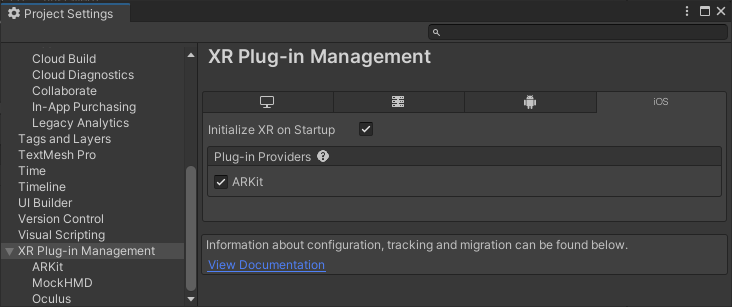
Enabling ARKit

Set the Target minimum iOS Version
The minimum version of iOS that supports ARKit is iOS 11.
To change this setting:
- Open the Project Settings window (menu: Edit > Project Settings).
- Select Player on the left to view the Player Settings page.
- Select the iOS tab to view the iOS settings.
- Open the Other Settings group (if necessary).
- Scroll down to the Configuration section.
- Set the Target minimum iOS Version field to 11.0 or higher.
Refer to Apple's Verifying Device Support and User Permission for additional information.
Set the Camera Usage Description
The camera usage description is a message that tells the user why your app is requesting access to
the device’s camera. The string assigned to this field is added to your app's Info.plist file for
the NSCameraUsageDescription key.
To set or change this setting:
- Open the Project Settings window (menu: Edit > Project Settings).
- Select Player on the left to view the Player Settings page.
- Select the iOS tab to view the iOS settings.
- Open the Other Settings group (if necessary).
- Scroll down to the Configuration section.
- Enter the desired string in the Camera Usage Description field.
Refer to Apple's Handle User Consent and Privacy for additional information.
Enable the Face tracking subsystem
To use ARKit's face tracking features, you must enable the ARKit face tracking subsystem in your XR Plug-in Management settings.
You must install the ARKit package before enabling ARKit face tracking. Refer to Apple ARKit plug-in enabled for instructions.
To enable ARKit face tracking:
- Open the Project Settings window (menu: Edit > Project Settings).
- Click XR Plug-in Management on the left to open the plug-in provider list.
- Select ARKit in the list to view the ARKit plug-in settings page.
- Check the box next to Face Tracking to enable the feature.
Set the ARKit support requirement
If your app can't function without ARKit support, you can prevent it from being installed on devices without ARKit support by setting the ARKit plug-in Requirement setting to Required. Alternately, if your app works with or without ARKit, you can set the Requirement setting to Optional.
When you require ARKit, the arkit key is added to the UIRequiredDeviceCapabilities section of your app's Info.plist file. Refer to Apple's Verifying Device Support and User Permission for additional information.
You must install the ARKit package before you can change the ARKit requirement setting. Refer to Enable the Apple ARKit plug-in for instructions.
To change this setting:
-
Open the Project Settings window (menu: Edit > Project Settings).
-
Click XR Plug-in Management on the left to open the plug-in provider list.
-
Select ARKit in the list to view the ARKit plug-in settings page.
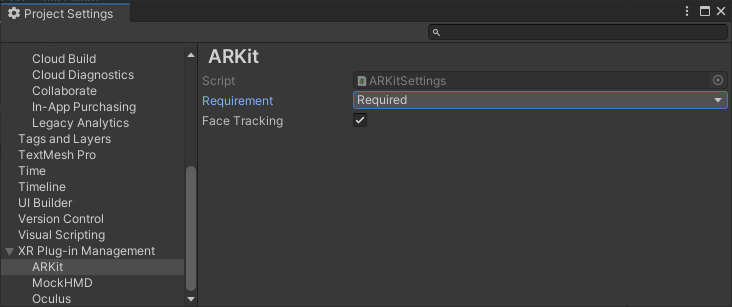
ARKit plug-in settings -
For Requirement, choose either Optional or Required.

Note
The Apple ARKit plug-in Requirement overrides the similar iOS Player setting, Requires ARKit support. When you have the ARKit plug-in installed, Unity ignores the Player Requires ARKit support setting and uses the plug-in Requirement value.
Project validation
The Apple ARKit package defines a set of rules for the Project Validation system. These rules check for possible mistakes in the project configuration.
Some rules serve as warnings for possible configuration problems; you aren't required to fix these. Other rules flag configuration errors that might result in your app failing to build or not working once built. You must fix these errors.
To review the ARKit project validation rules:
- Open the Project Settings window (menu: Edit > Project Settings).
- Click XR Plug-in Management on the left to open the plug-in provider list.
- Select Project Validation in the list to view the validation page.
- Select the iOS tab to view the status of the validation checks for iOS XR plug-ins, including ARKit.
Rules that pass validation aren't shown unless you enable Show all.
Some rules provide a Fix button that updates the configuration so that the rule passes validation. Other rules provide an Edit button that takes you to the relevant setting so that you can make the necessary adjustments yourself.
You can enable Ignore build errors to bypass the pre-build validation check. However, any misconfigured features in your app might not work at runtime.

The iOS Project Validation section of the XR Plug-in Management page